
Short answer: Send your interview audio to the TranscribeMe bot on WhatsApp and the transcript comes back in seconds. Open the link to TranscribeGo on the web, where the left panel shows the full transcript with each speaker identified and the right panel is an AI assistant in Journalist mode — ask it for the key quotes or a full article, optimized for search. Export it, publish it, and let the Media Radar alert you the moment something breaks in your country. No app to install, 12 languages.
For a journalist, the bottleneck was never the writing — it was everything before it. The hours of replaying an interview to type it out word by word. Copying text into another tool. Hunting for the strongest quotes. Structuring the piece, working in keywords, formatting for the CMS. By the time the story is ready, someone else has already published.
This workflow collapses that entire chain into a few minutes, and it starts in an app you already have open: WhatsApp. Here's the full journey, from the recording to the published story.
Step 1: Send the audio over WhatsApp
You finish the interview. Instead of opening a laptop, you forward the voice recording to the TranscribeMe bot on WhatsApp — the same verified bot, in the same chat where you already work. There's nothing to install and no new tool to learn.
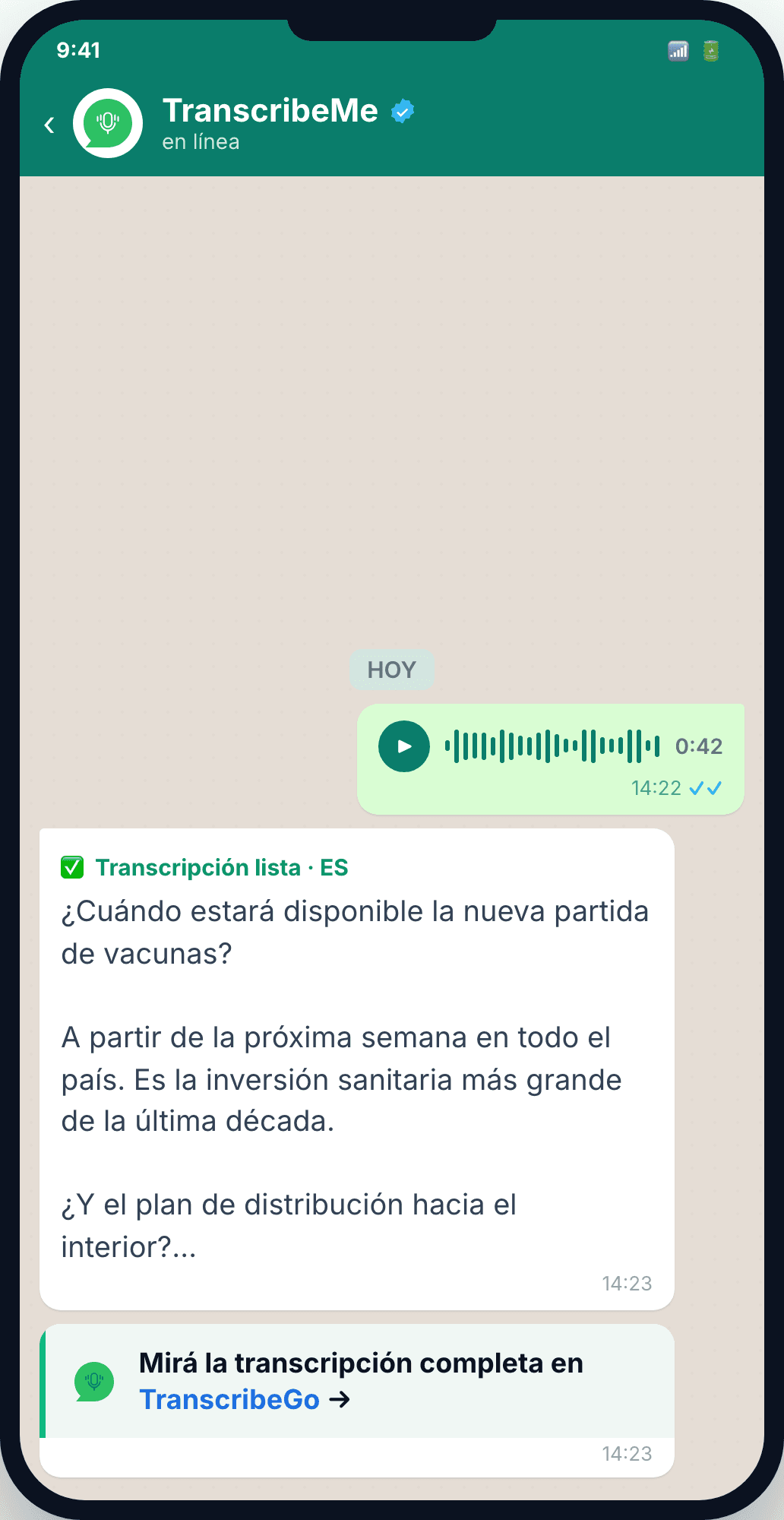
In seconds the full transcript arrives as a block of text, right in the chat. For a quick check or a fast quote, that's often all you need. And when you want to see who said what, edit speakers, or build the article, a link takes you straight to TranscribeGo on the web.
The point is speed at the moment of capture. You can send the audio from the field, from a taxi, from the press room — anywhere your phone has signal — and have usable text before you're back at your desk.
Step 2: On the web — who said what, plus your AI assistant
Open the link and the interview opens in a two-panel workspace.
On the left, the full transcript with diarization: every speaker is identified and editable, with a "Speakers" bar and timestamps so you can jump to the exact moment in the audio. Rename "Speaker 1" to the person's actual name and it updates everywhere.
On the right, the AI assistant in Journalist mode. This is where the raw transcript becomes a story. You don't fight with menus — you just ask:
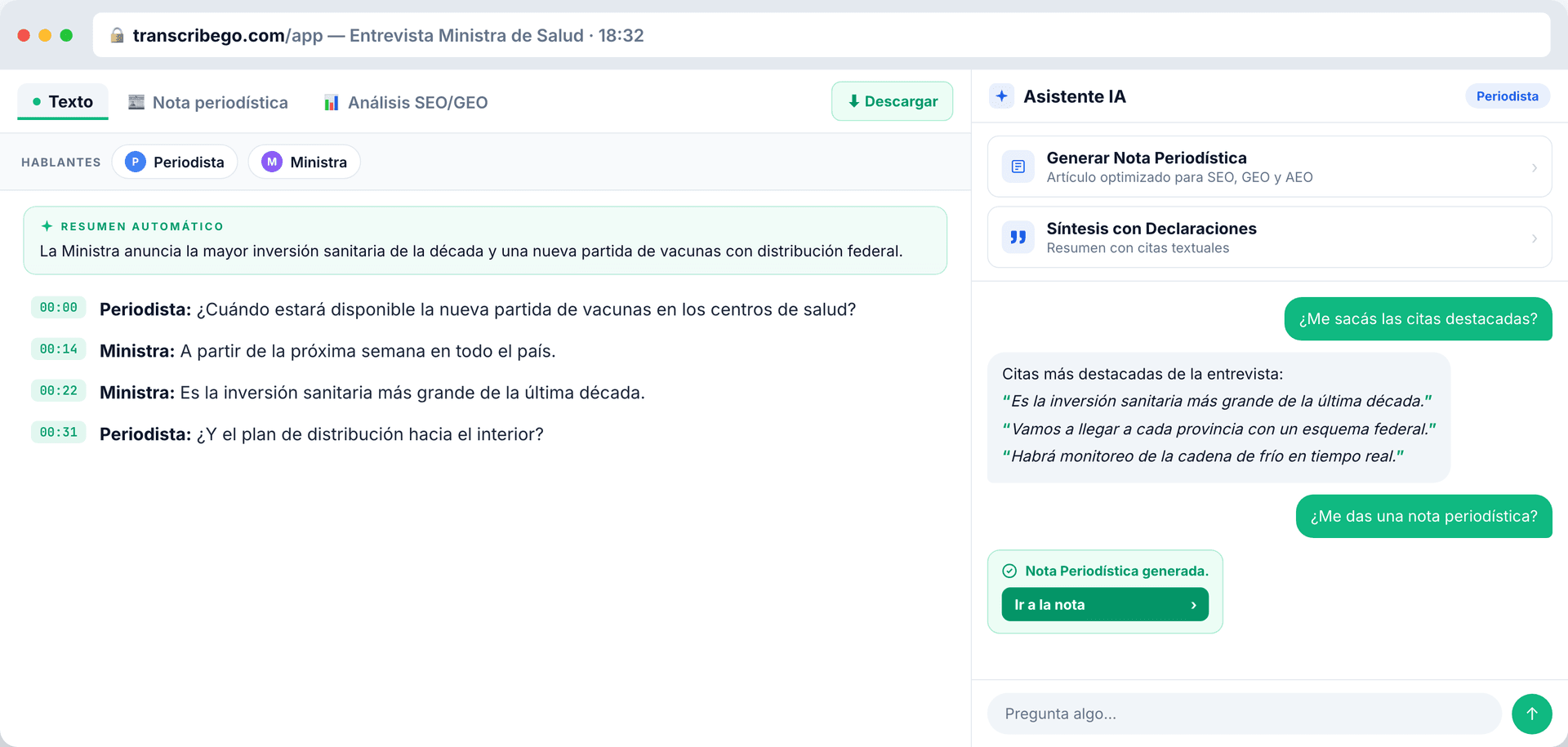
- Ask "pull out the standout quotes" and the assistant returns two or three of the strongest verbatim statements, ready to drop into your piece. The "Quote-based Summary" tool does the same thing in a structured way: a recap built around the exact words your source used.
- Ask "give me a news article" and the "Generate News Article" tool drafts the full piece — structured, attributed, and written to be found by search engines and AI assistants.
You stay in control of the editorial judgment; the assistant does the heavy lifting of structuring and drafting.
Step 3: Your article — drafted, formatted, and search-optimized
The article appears in the "News Article" tab of your workspace, already formatted: a strong headline, subheadings, a pull-quote, and clean paragraphs. It reads like a finished piece, not a wall of text.
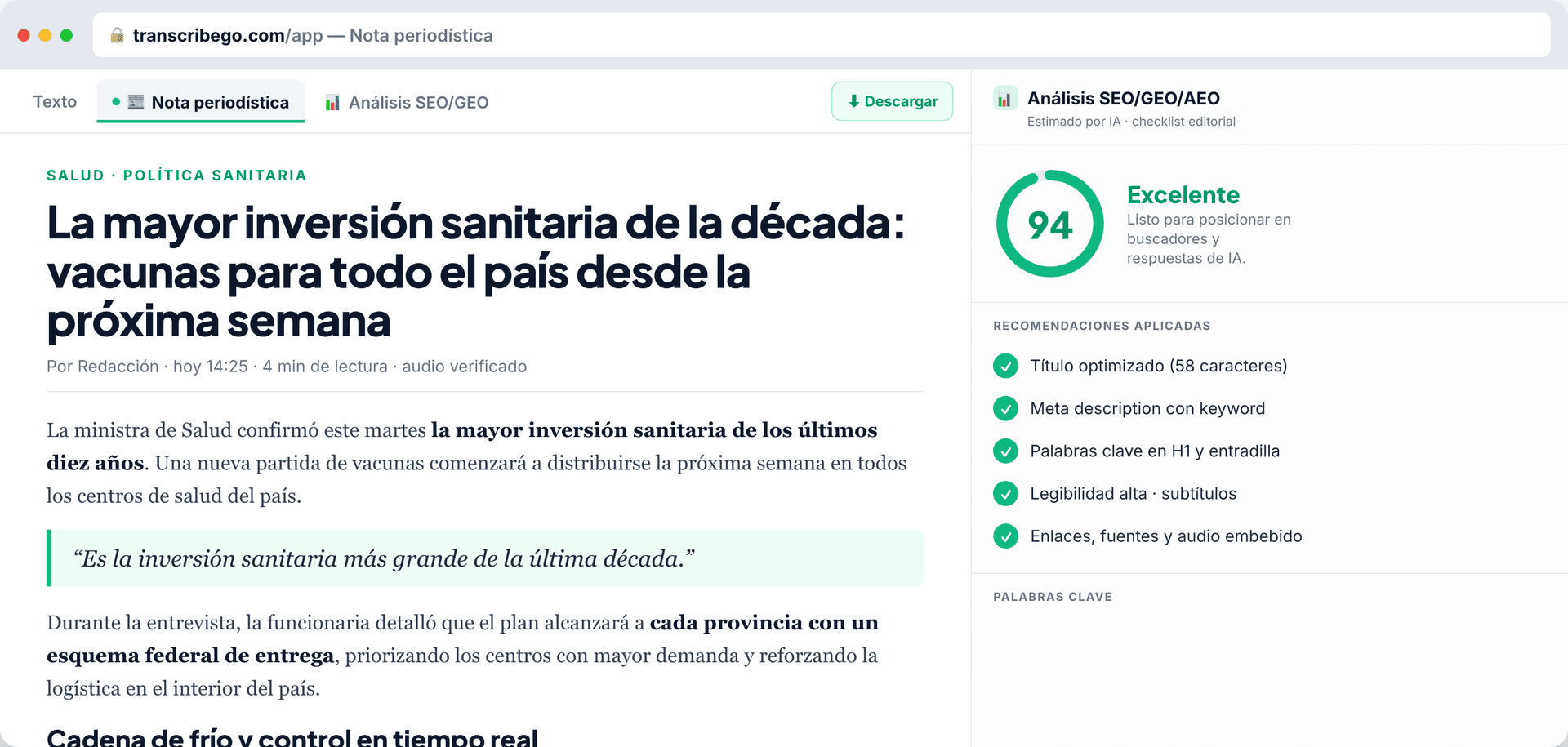
Next to it sits a SEO / GEO / AEO analysis panel with a clear score — in this example 94/100, "Excellent" — and a checklist of recommendations already applied: headline, meta description, keywords, readability. GEO and AEO matter as much as classic SEO now, because audiences increasingly find news through AI-generated answers, not just the blue links. The article is written to be cited in both.
Need a change? Tell the assistant in plain language — "change the headline to…" — and it rewrites it in place. No copy-paste between tools.
Step 4: Publish
When the piece is ready, you publish. Export to Word or PDF, or copy it straight into your CMS, with the original audio embedded as a backup of the source. The story is structured and optimized for search from the first minute it's live — so it has a real chance of being the version readers and AI assistants find.
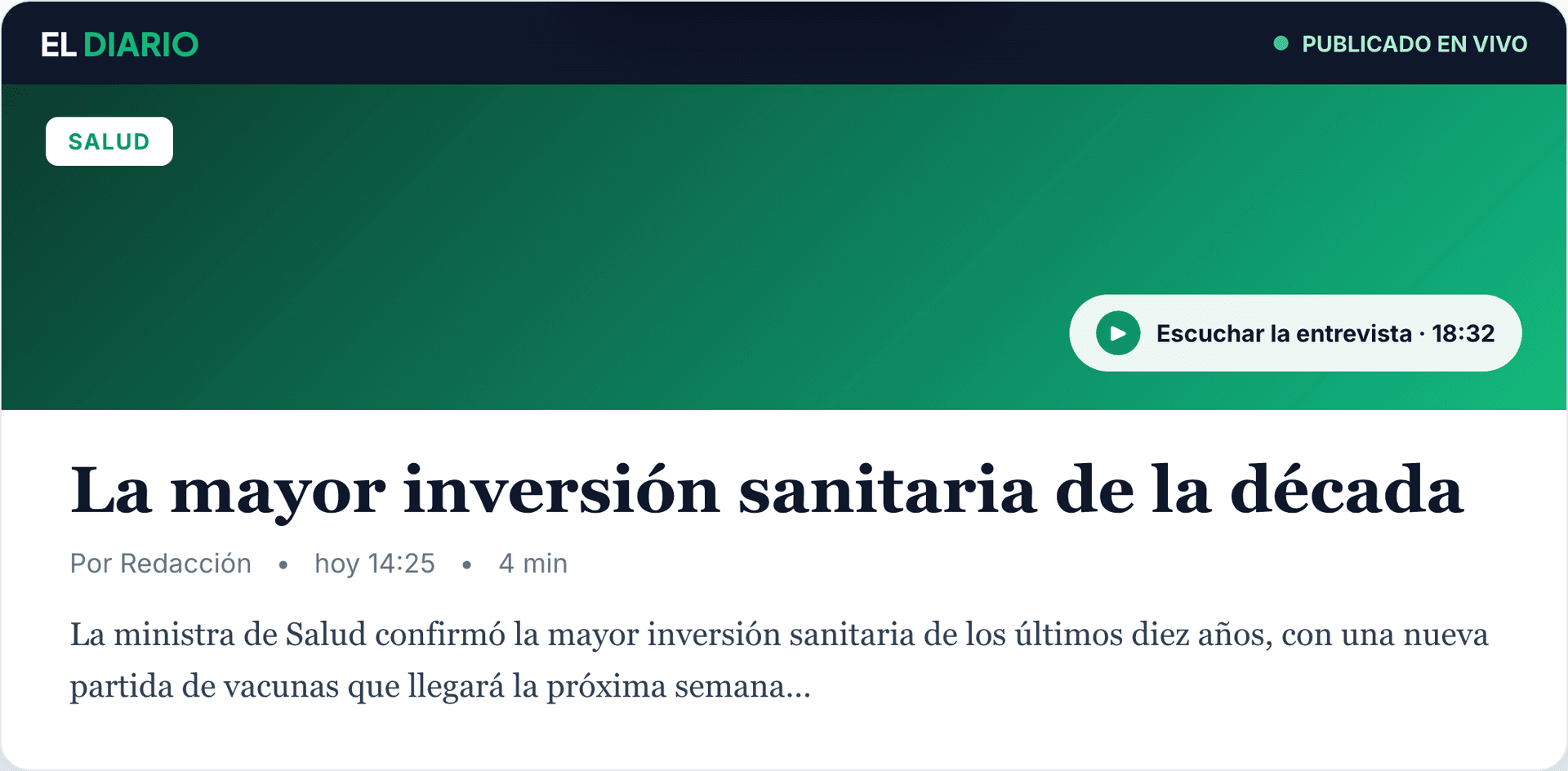
The whole path — record, transcribe, draft, optimize, publish — happens without leaving the platform, and most of it without leaving your phone.
What's new: the Media Radar
Before we wrap up, here's something that just arrived — and it's one of the most requested features by journalists across Latin America.
Publishing fast is half the battle. Knowing what to cover, before everyone else is the other half. That's what the brand-new Media Radar does.
You set it up in a couple of clicks. First, pick the countries you cover: as you add each one in the search box, its outlets appear below, ready to switch on — organized in three sections, Newspapers, Radio, and Social / YouTube.
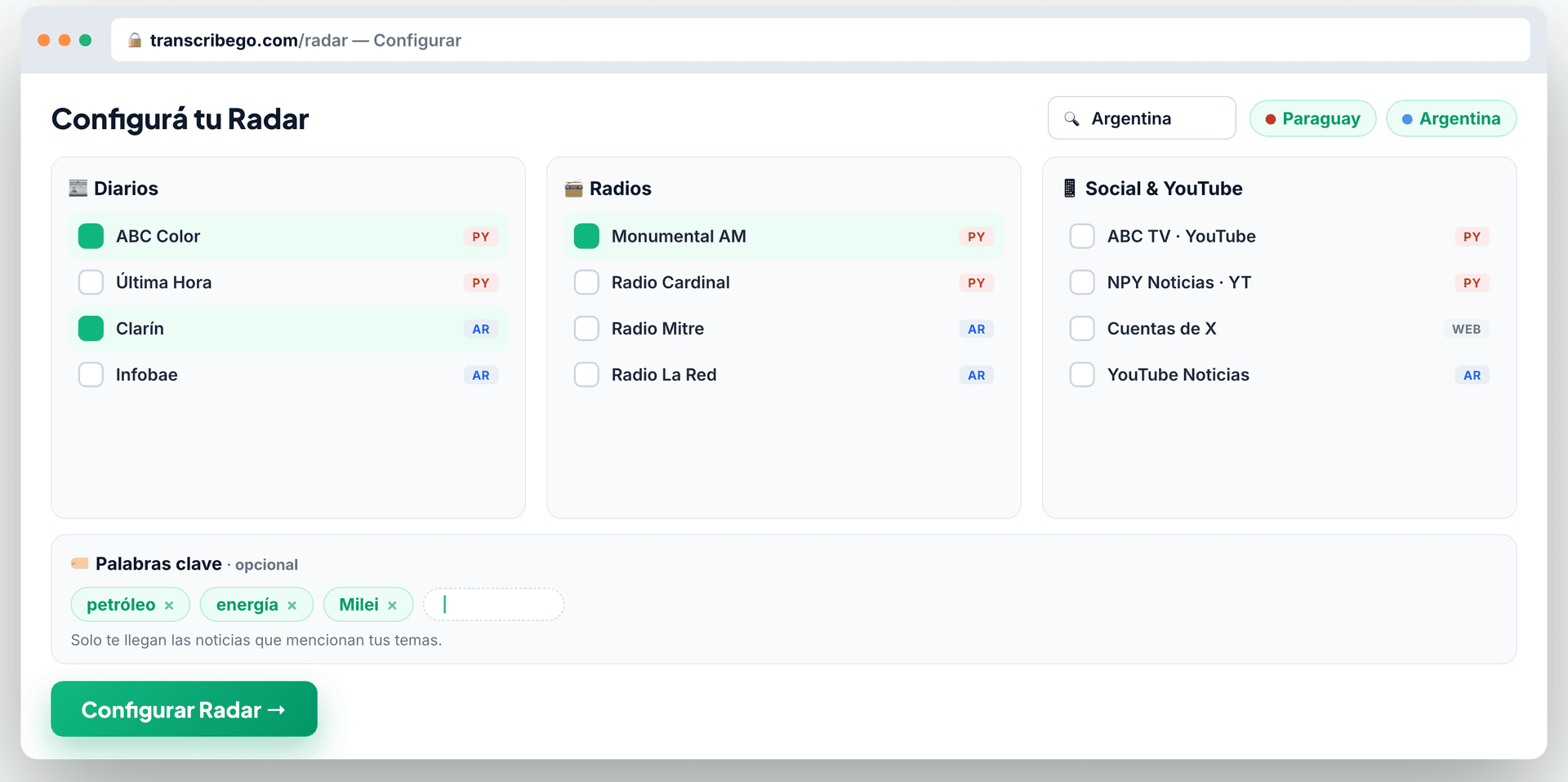
For Paraguay that might mean ABC Color and Última Hora, Monumental AM and Radio Cardinal, and ABC TV / NPY on YouTube. For Argentina, Clarín and Infobae, Radio Mitre and La Red — and you can keep adding countries across the region.
Then, if you want, narrow it down with optional keywords — terms like oil, energy, or a president's name like Milei. With keywords set, only the stories that mention your topics come through, so your alerts stay focused on the beat you actually cover.
Once it's configured, breaking stories reach you instantly — over WhatsApp (the "TranscribeGo · Radar" bot), or Telegram or email, whichever you prefer — each with a short summary and a link to the source.
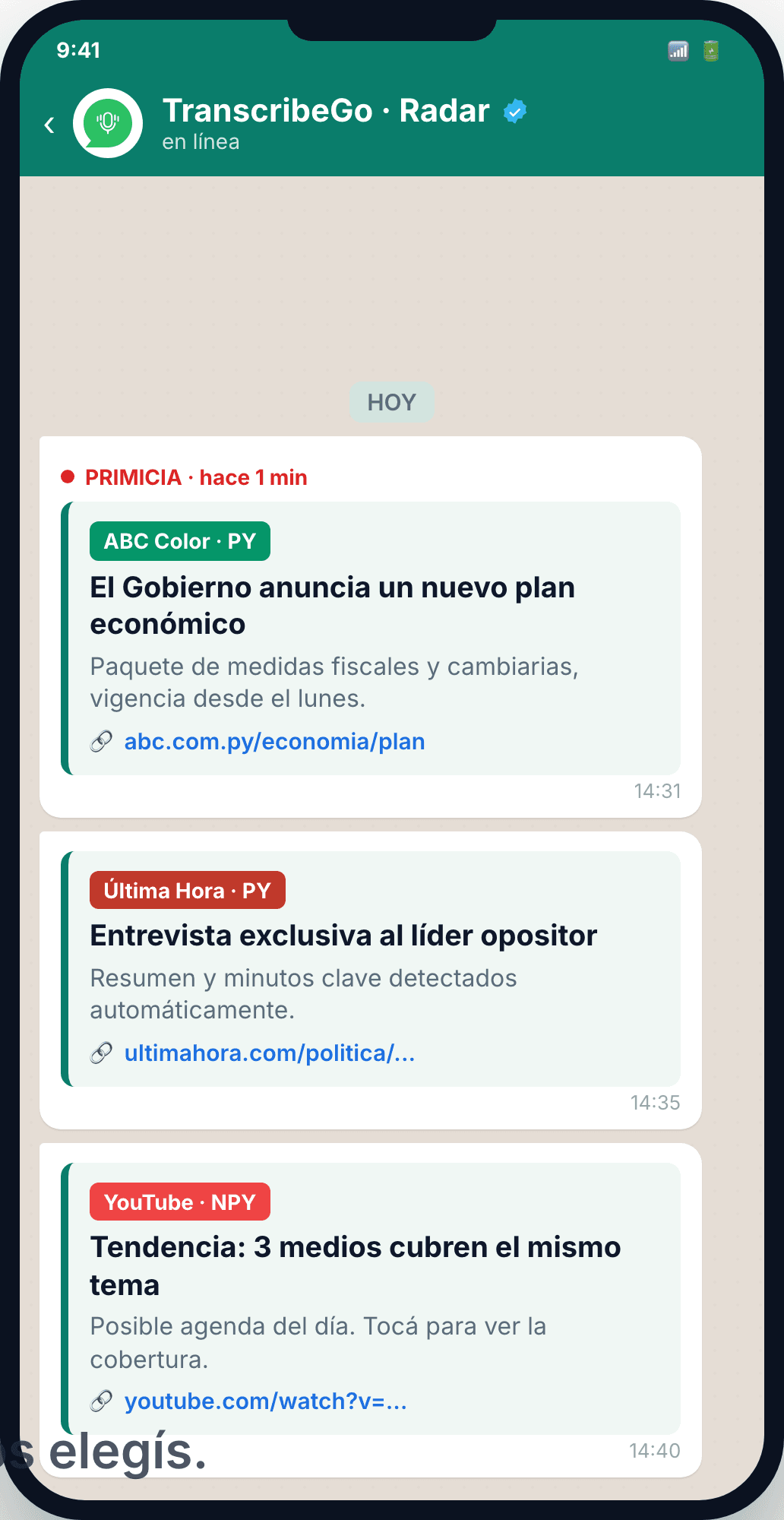
It also surfaces trends, so you can spot a topic that's starting to climb before it goes mainstream and own the day's agenda. In journalism, the gap between a scoop and a rehash is measured in minutes — the Radar is built to keep you on the right side of it.
The full loop
Put the pieces together and you have a complete cycle that lives mostly on your phone:
- Record the interview and send the audio over WhatsApp.
- Transcribe — the text comes back in seconds; open the web for diarization, quotes, and the AI assistant.
- Publish — a formatted, search-optimized article, exported or dropped into your CMS.
- Stay ahead — the Media Radar alerts you to the next story before the competition.
It works in 12 languages, with nothing to install. Start with your next interview.
Try TranscribeGo Free
10 free minutes. No credit card required.
Frequently Asked Questions
How do I get the transcript through WhatsApp?▾
You send your interview recording to the verified TranscribeMe bot on WhatsApp, in the same chat where you already work. The full transcript comes back as a block of text in seconds — no app to install. A link in the chat takes you to the web, where you can see each speaker identified, pull quotes, and generate the article.
What is diarization and why does it matter for interviews?▾
Diarization means the transcript identifies who said what — each speaker is separated and labeled, and the labels are editable so you can replace "Speaker 1" with the person's real name. For interviews and press conferences with multiple voices, it's what turns a single block of text into an attributable, quotable record, with timestamps that let you jump back to the exact moment in the audio.
Can the AI write the article and keep the exact quotes?▾
Yes. In Journalist mode, the AI assistant has two tools: "Generate News Article," which drafts a structured, search-optimized piece, and "Quote-based Summary," which builds a recap around the verbatim statements from your source. You can also just ask in the chat — "pull out the standout quotes" or "give me a news article" — and it responds. The exact words of your sources are preserved so attribution stays accurate.
What are SEO, GEO, and AEO, and how does the article get optimized?▾
SEO is optimization for search engines, GEO for generative engines (the AI assistants that now answer questions directly), and AEO for answer engines. The generated article comes with an analysis panel that scores it and applies recommendations — headline, meta description, keywords, readability — so it's written to be found and cited across search engines and AI answers alike. The example in this article scores 94/100.
What is the Media Radar and which channels does it cover?▾
The Media Radar is our newest feature — one heavily requested by journalists across Latin America. You pick the countries you cover and their outlets light up across three sections — Newspapers, Radio, and Social / YouTube — and you can add optional keywords (like "oil", "energy", or a president's name such as "Milei") so only relevant stories come through. Breaking stories then reach you instantly over WhatsApp, Telegram, or email, each with a summary and a link to the source, and it surfaces trending topics so you can act before they go mainstream.